Francisco Javier Cruces Doval
Saturday, October 28, 2023 | 5 minutes
WordPress installation in Debian 12 with LAMP PHP-8
WordPress Installation on Debian 12 with the LAMP Stack and PHP 8
WordPress is a very popular open source content management system (CMS) that is used to create and manage websites and blogs. It was first released in 2003 and has since won a wide user base and an active community of developers and designers.
Preparation
Before starting the WordPress installation, we will define the server configuration to ensure everything works correctly:
- Full LAMP server: Apache + MySQL (or MariaDB) and PHP 8.x.
- Set up a VirtualHost for our domain.
- Develop the database with a user.
If the LAMP stack is not installed, you can do so via this link.
Creation of VirtualHost
We will copy Apache’s default configuration file and rename it as wordpress.conf.
javiercruces@IWEB:/etc/apache2/sites-available$ sudo cp 000-default.conf wordpress.conf
We will configure the virtual site, remember to modify the ServerName and DocumentRoot.
<VirtualHost *:80>
    # The ServerName directive sets the request scheme, hostname and port that
    # the server uses to identify itself. This is used when creating
    # redirection URLs. In the context of virtual hosts, the ServerName
    # specifies what hostname must appear in the request's Host: header to
    # match this virtual host. For the default virtual host (this file) this
    # value is not decisive as it is used as a last resort host regardless.
    # However, you must set it for any further virtual host explicitly.
    ServerName wordpress.fjcd.es

    ServerAdmin webmaster@localhost
    DocumentRoot /var/www/wordpress

    # Available loglevels: trace8, ..., trace1, debug, info, notice, warn,
    # error, crit, alert, emerg.
    # It is also possible to configure the loglevel for particular
    # modules, e.g.
    # LogLevel info ssl:warn

    ErrorLog ${APACHE_LOG_DIR}/error.log
    CustomLog ${APACHE_LOG_DIR}/access.log combined

    # For most configuration files from conf-available/, which are
    # enabled or disabled at a global level, it is possible to
    # include a line for only one particular virtual host. For example, the
    # following line enables the CGI configuration for this host only
    # after it has been globally disabled with "a2disconf".
    # Include conf-available/serve-cgi-bin.conf
</VirtualHost>
Enable the virtual site wordpress.conf.
javiercruces@IWEB:/etc/apache2/sites-available$ sudo a2ensite wordpress.conf
Enabling site wordpress.
To activate the new configuration, you need to run:
  systemctl reload apache2
Restart Apache to apply the new configuration.
javiercruces@IWEB:/etc/apache2/sites-available$ sudo systemctl reload apache2
To access this VirtualHost from the client machine, since there is no DNS server, remember to add the server’s IP and the ServerName to the /etc/hosts file:
javiercruces@HPOMEN15:~$ cat /etc/hosts
# Añade la IP de tu servidor y el ServerName correspondiente (wordpress.fjcd.es)
# Ponlo al final del fichero y no modifiques las líneas existentes en tu fichero
192.168.125.27 wordpress.fjcd.es
Creating the database with a user
I recommend noting down the data entered below, as you will need them later. We will connect to the database:
javiercruces@IWEB:~$ sudo mysql -u root -p
Enter password:
Welcome to the MariaDB monitor.  Commands end with ; or \g.
Your MariaDB connection id is 31
Server version: 10.11.4-MariaDB-1~deb12u1 Debian 12

Copyright (c) 2000, 2018, Oracle, MariaDB Corporation Ab and others.

Type 'help;' or '\h' for help. Type '\c' to clear the current input statement.
Database creation:
MariaDB [(none)]> CREATE DATABASE fjcd_wordpress;
Query OK, 1 row affected (0.001 sec)
User creation for the database:
MariaDB [(none)]> CREATE USER 'fjcd-wordpress'@'localhost' IDENTIFIED BY 'tu_contraseña';
Query OK, 0 rows affected (0.013 sec)
Granting privileges on the database:
MariaDB [(none)]> GRANT ALL PRIVILEGES ON fjcd_wordpress.* TO 'fjcd-wordpress'@'localhost';
Query OK, 0 rows affected (0.010 sec)
Updating the privileges:
MariaDB [(none)]> FLUSH PRIVILEGES;
Query OK, 0 rows affected (0.000 sec)
MySQL CLI exit:
MariaDB [(none)]> EXIT;
Bye
WordPress installation
The first step is to download WordPress. This can be done using wget or, if it’s already downloaded on the host machine, by transferring it via SCP or FTP.
javiercruces@IWEB:~$ wget https://wordpress.org/latest.tar.gz
--2023-10-27 12:33:17--  https://wordpress.org/latest.tar.gz
Resolviendo wordpress.org (wordpress.org)... 198.143.164.252
Conectando con wordpress.org (wordpress.org)[198.143.164.252]:443... conectado.
Petición HTTP enviada, esperando respuesta... 200 OK
Longitud: 23465047 (22M) [application/octet-stream]
Grabando a: «latest.tar.gz»

latest.tar.gz             100%[=====================================>]  22,38M  14,8MB/s    en 1,5s

2023-10-27 12:33:19 (14,8 MB/s) - «latest.tar.gz» guardado [23465047/23465047]
Next, we will uncompress the file and copy its contents into the DocumentRoot of our VirtualHost:
javiercruces@IWEB:~$ sudo mkdir /var/www/wordpress/
javiercruces@IWEB:~$ sudo tar -zxf latest.tar.gz -C /var/www/
We will access the WordPress directory to configure the correct permissions:
javiercruces@IWEB:~$ cd /var/www/
Change the owner and group:
javiercruces@IWEB:/var/www$ sudo chown -R www-data:www-data wordpress/
Once all this is configured, we can access our domain via a browser to start the WordPress installation.
Web installation
We will access the URL defined in the ServerName of our virtual site and configured in the /etc/hosts file.
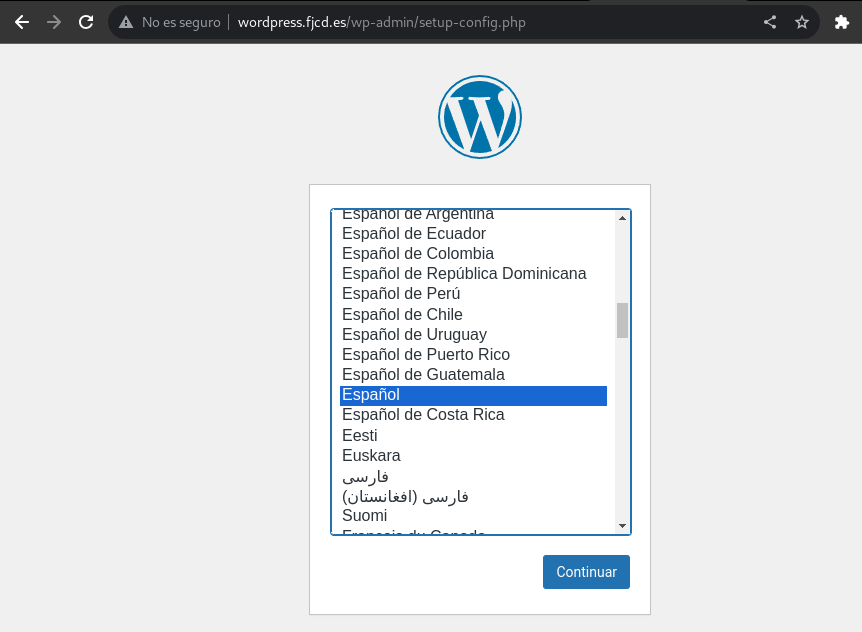
The first step is to select the language:
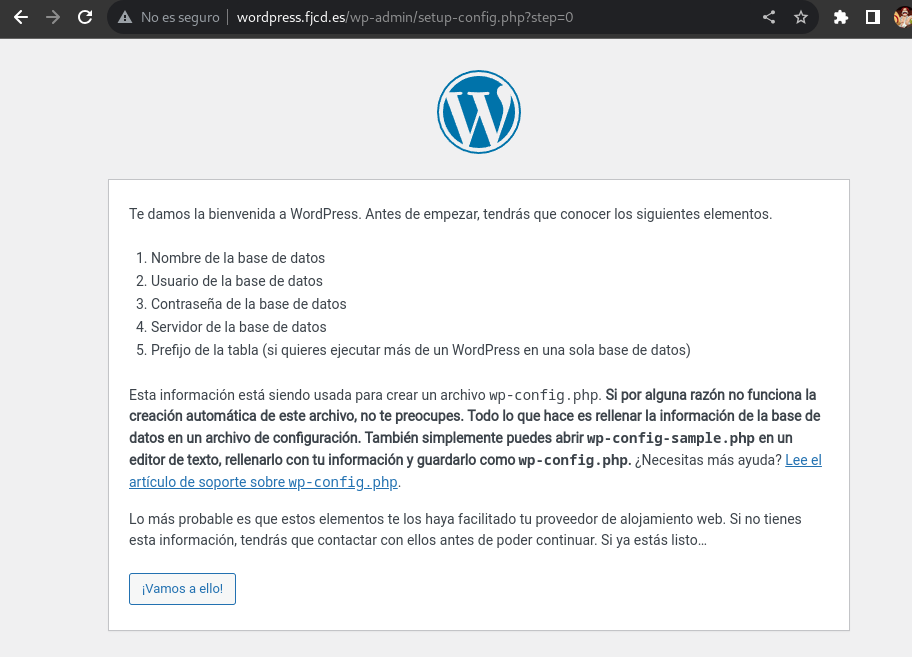
Below, a brief explanation of the WordPress CMS will be displayed:
You will now need to enter the user details and the name of the database created earlier:
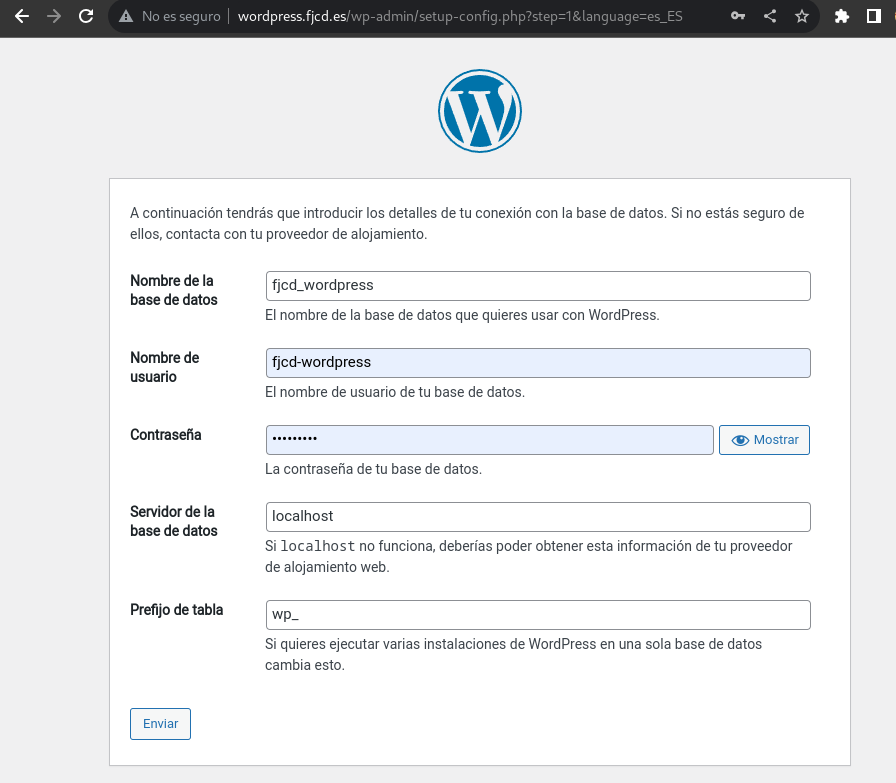
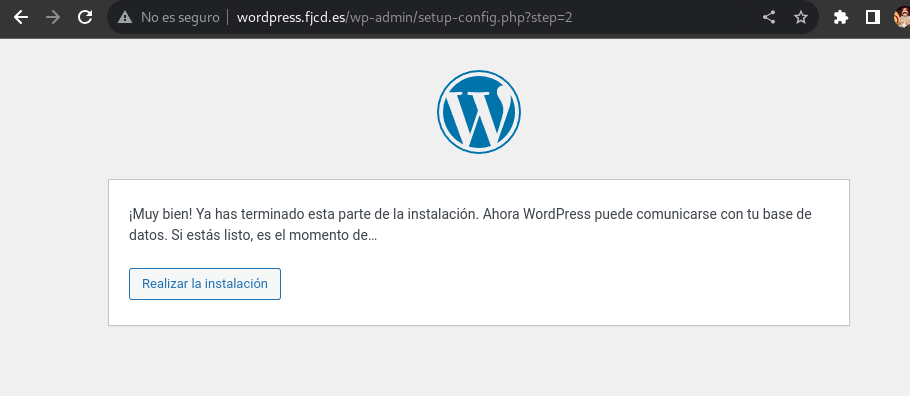
Once the correct data is entered, we will proceed with the installation:
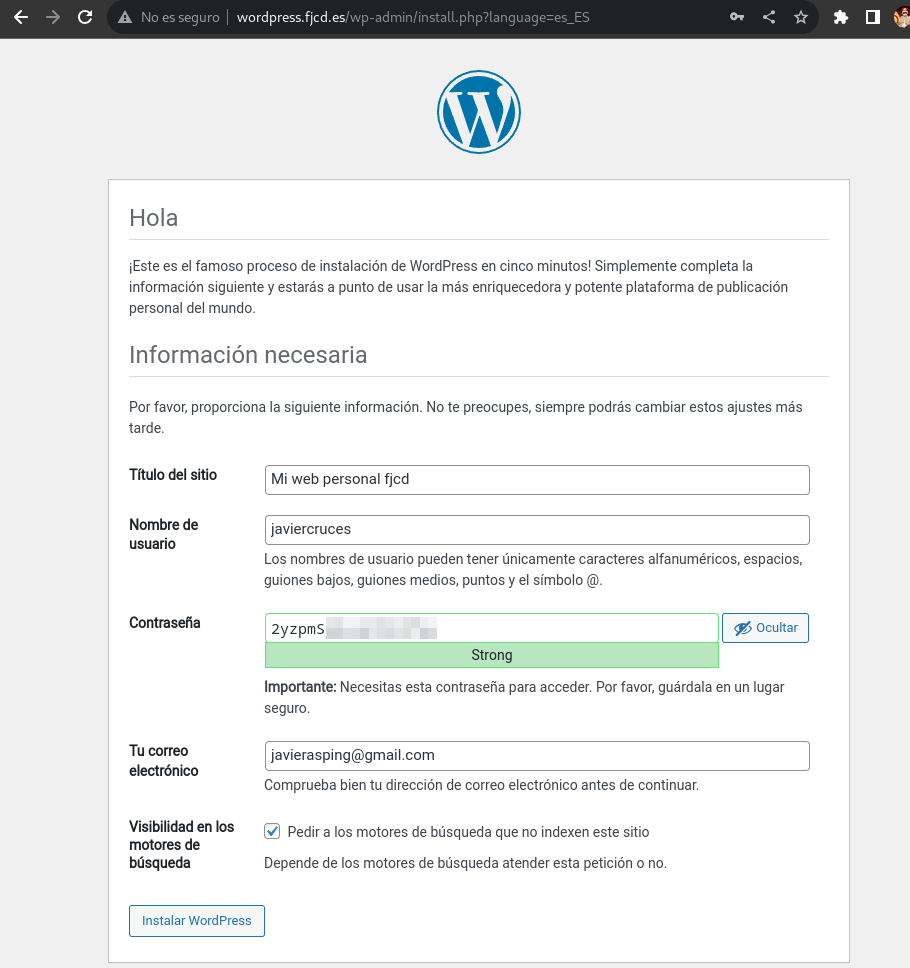
Now you must enter the information for your WordPress site, such as the site name and the creation of an administrator user to later access the wp-admin panel:
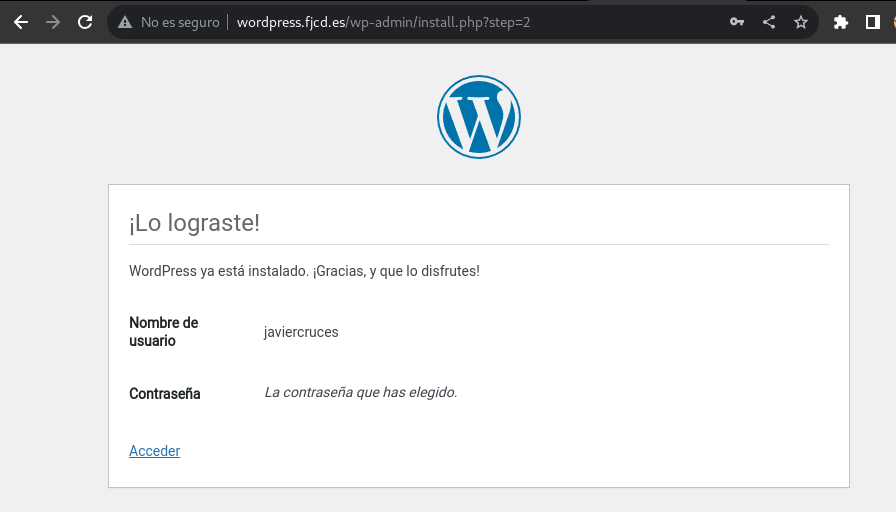
Ready! WordPress has been successfully installed.
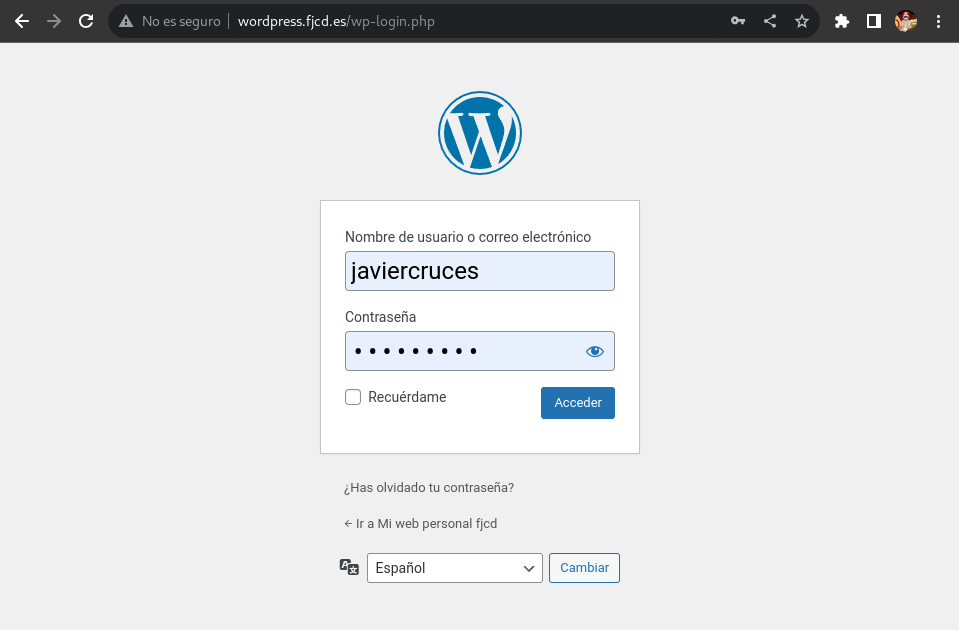
To access the WordPress management panel, enter the following URL in your browser and log in with the created user:
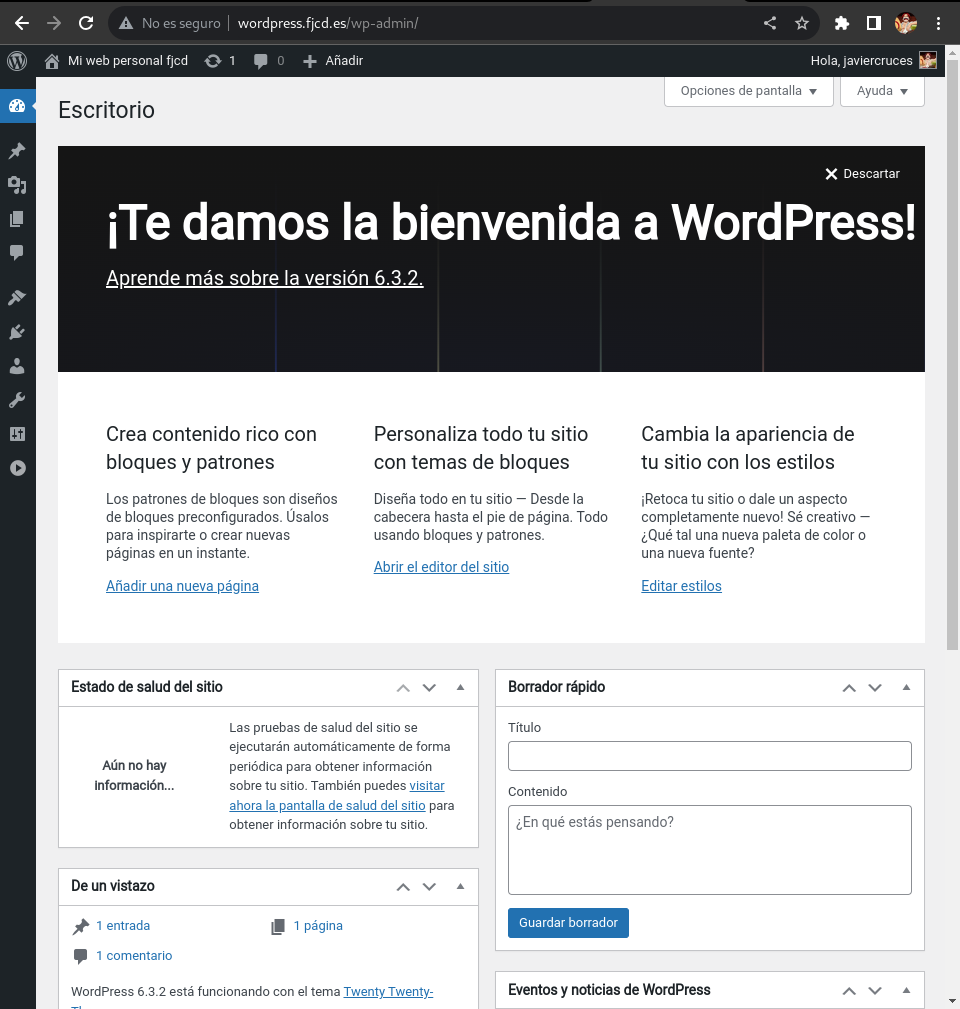
Ready! This is how the WordPress management panel looks: